
Often you need to locate a specific phrase, word, or piece of information inside PDF files. C# developers can automate this task by using GroupDocs.Search for .NET to search PDF documents programmatically. This guide demonstrates how to search text in PDF documents using C#.
The following topics are discussed/covered in this article:
- C# API for Searching Text
- Search Text in PDF Documents using C#
- Case-Sensitive Text Search in PDF using C#
C# API for Searching Text
To search text in PDF files, we will use the GroupDocs.Search for .NET API. This library supports full‑text search across all major document formats—including PDF, Word, Excel, PowerPoint, and many others. It also enables searching inside emails, archives, and other file types. With GroupDocs.Search you can create multiple indexes, merge them, and execute simple keyword, Boolean, regular expression (Regex), fuzzy, and advanced queries.
You can obtain the library by either downloading the DLL or installing it via NuGet.
Install-Package GroupDocs.Search
Search Text in PDF Documents using C#
Programmatically search any text or specific word in PDF files by following these steps:
- Create an instance of the Index class.
- Provide the path to the folder where the index will be stored.
- Subscribe to the relevant index events for error handling.
- Add PDF files to the index using the Add() method.
- Build a search query.
- Execute the search with the Search() method.
- Retrieve results via the SearchResult object and display a summary.
- Highlight matched terms in the output using the Highlight() method.
The code sample below illustrates how to search text in PDF documents using C#.
The sample produces the following console output:
Documents found: 1
Total occurrences found: 4
        Document: C:\Files\Files\sample.pdf
        Occurrences: 4

Generated HTML file can be opened with Internet browser.
The file can be found by the following path:
C:\Files\Files\Highlighted.html
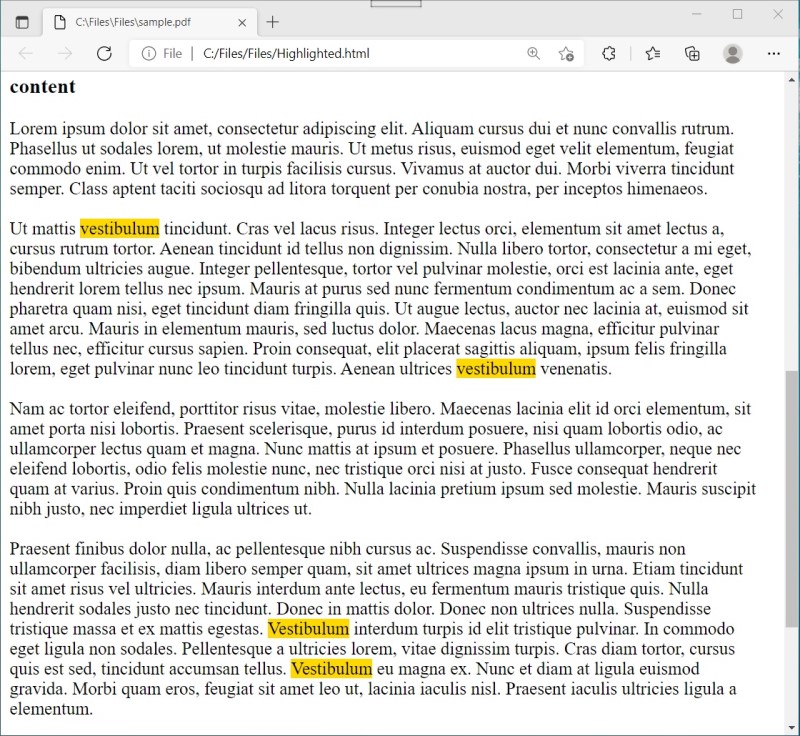
Highlighted the Searched Text in PDF Documents using C#
The Index and Index Event
The Index class is responsible for both indexing documents and executing searches. It can be instantiated in memory or on disk; in this example the index is persisted on disk for reuse.
The ErrorOccurred event notifies you of any issues that arise while indexing files, allowing you to log or handle errors promptly.
Add Files to the Index
Calling the Add() method adds a single file or an entire folder (including subfolders) to the index. You can supply either an absolute or relative path, and the method will index every supported document it discovers.
Perform a Search Operation
The Index class offers several overloads of the Search method. You can perform a simple keyword search or construct a more detailed SearchQuery for advanced scenarios.
The SearchResult object contains comprehensive information about each match:
- The OccurrenceCount property indicates the total number of matches across all documents.
- The DocumentCount property shows how many documents contain the search term.
- The GetFoundDocument(int) method returns a specific FoundDocument by its index.
- The FoundDocument.OccurrenceCount property reveals the number of matches within that particular document.
Highlight the Search Results
The HtmlHighlighter class generates HTML that visually emphasizes the found terms. Use the Highlight() method to obtain HTML with highlighted keywords. For more details, see “Highlighting Search Results”.
Case-Sensitive Text Search in PDF using C#
To perform a case‑sensitive search for exact phrases or words in PDF files, follow these steps:
- Create an instance of the Index class.
- Set the path to the index folder.
- Add PDF files to the index with the Add() method.
- Instantiate a SearchOptions object.
- Enable case‑sensitive matching by setting the UseCaseSensitiveSearch property to true.
- Define your search query.
- Execute the search using the Search() method, passing the query and the configured SearchOptions.
- Process the SearchResult to display a summary.
The example below demonstrates how to perform a case‑sensitive text search in a PDF document using C#.
Documents found: 1
Total occurrences found: 2
        Document: C:\Files\Files\sample.pdf
        Occurrences: 2
The SearchOptions class provides additional controls for search behavior. Setting the UseCaseSensitiveSearch flag ensures that only exact‑case matches are returned.
Get a Free License
You can try the API without evaluation limitations by requesting a free temporary license.
Conclusion
In this article you learned how to search text in a PDF document using C# and how to execute case‑sensitive searches with GroupDocs.Search for .NET. For deeper guidance, explore the official documentation or ask questions on the forum.