How to Insert Pictures in Excel using Node.js
Every day developers need to upload images, update picture content, or perform data‑entry tasks in Excel workbooks. Automating these actions saves time and reduces errors. In this article we use the JS Excel library to demonstrate how to insert pictures into Excel using Node.js. By the end of the guide you’ll be able to write code that programmatically adds and positions images in a worksheet.
We will be covering the following sections in this guide:
JS Excel library installation
The library offers a straightforward installation process for Node.js developers. First, ensure Java is installed on your system, then install the required npm packages either by downloading the API package or by running the commands below.
npm install java
npm install aspose.cells
How to insert pictures in Excel using Node.js
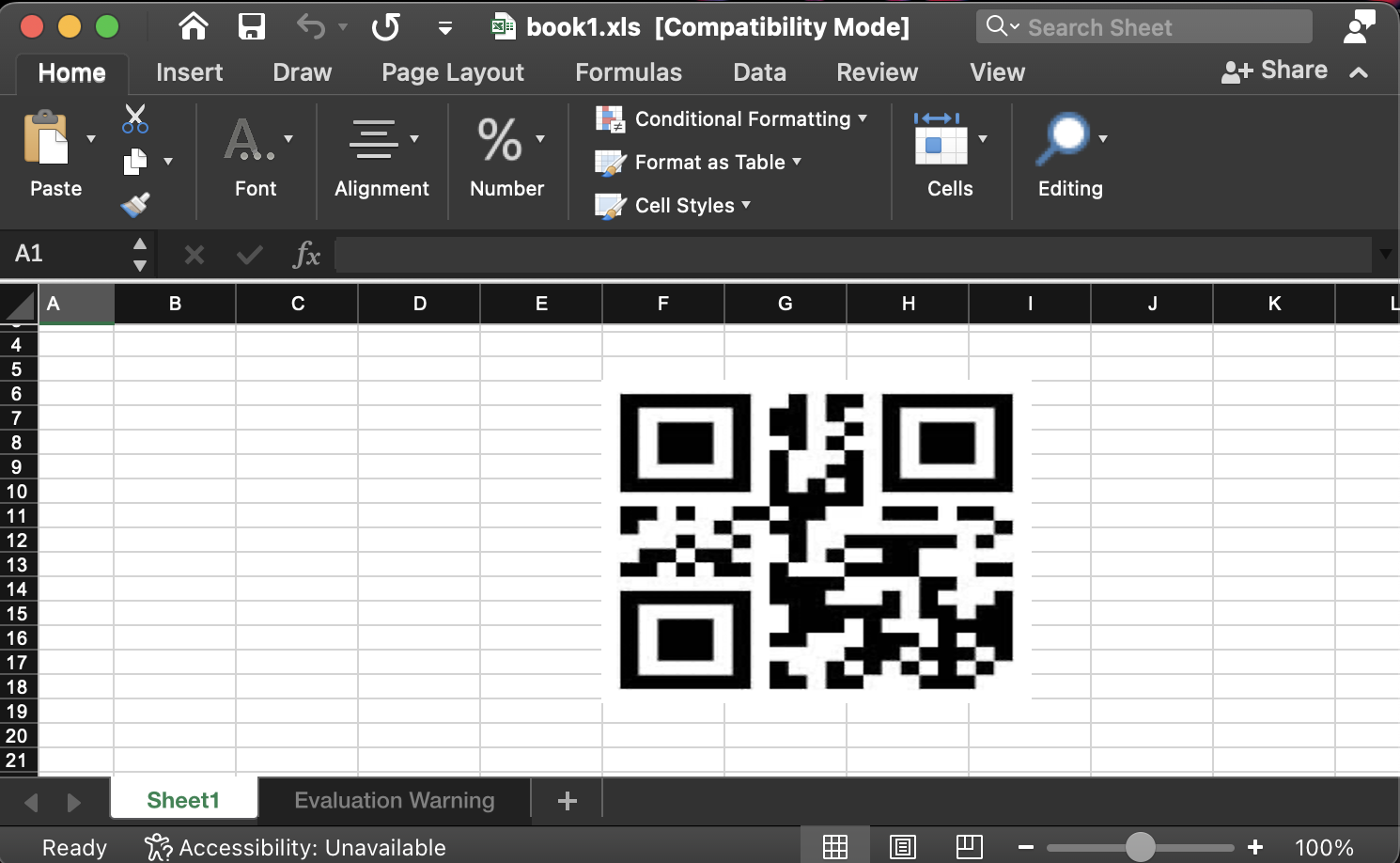
The following example shows how to create a workbook, access its first worksheet, and insert an image at a specific cell. Each step corresponds to a method in the JS Excel API.
Follow these steps:
- Create an instance of the Workbook class.
- Call the getWorksheets method to obtain the WorksheetCollection.
- Retrieve the first worksheet with the get method.
- Use the add method to place a picture at the cell located at row 5, column 5.
- Access the picture element with the get method.
- Save the Excel file using the save method.
Copy & paste the following code into your main file:
The result is shown in the image below:
Picture positioning
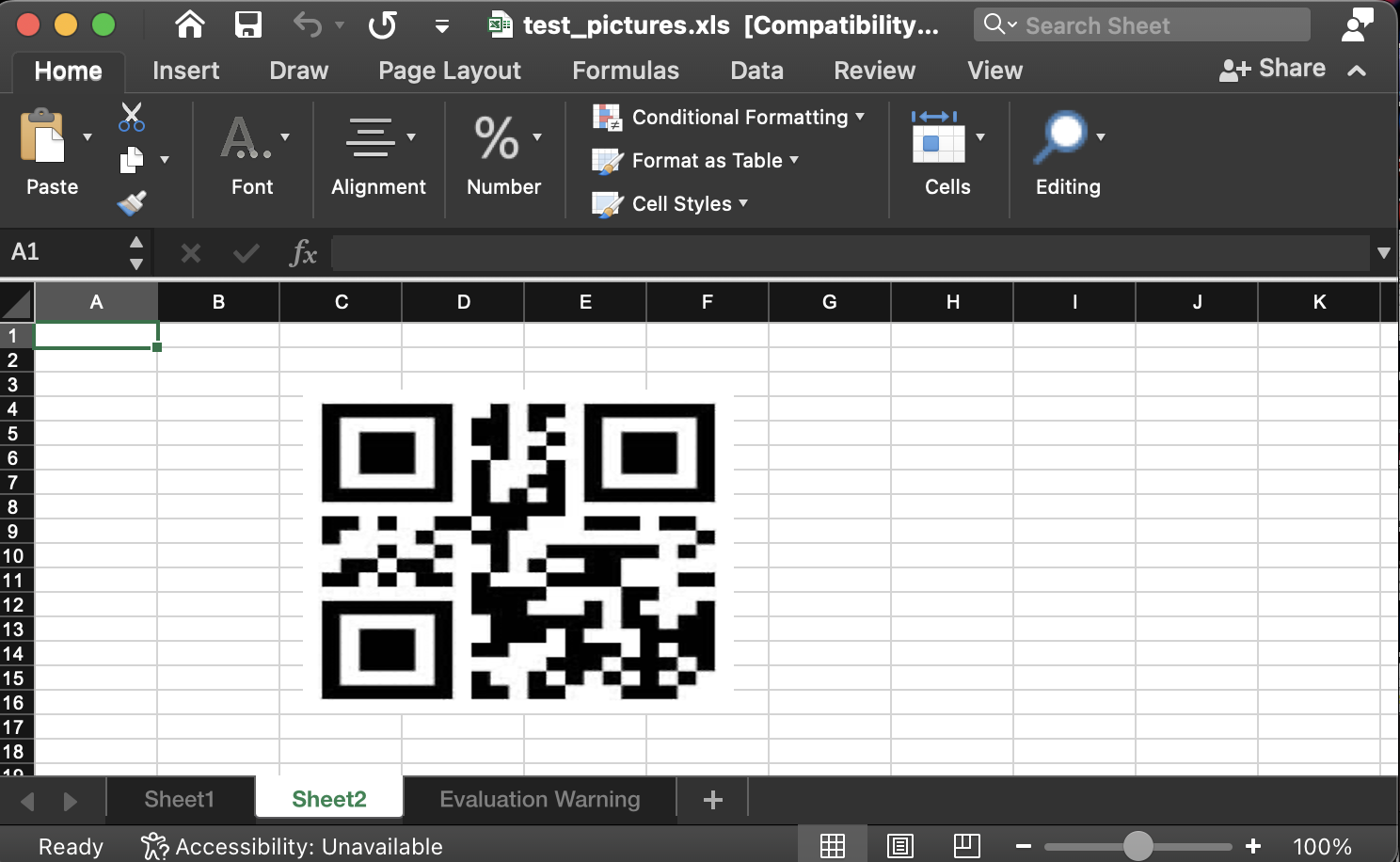
Beyond simple insertion, the JS Excel library lets you fine‑tune image placement using offset properties. The example below demonstrates how to add a picture and adjust its horizontal and vertical offsets for precise positioning.
Steps to position the picture programmatically:
- Instantiate a Workbook object.
- Add a new sheet using the add method.
- Access the worksheet with the get method.
- Add the picture to the collection via the add method.
- Retrieve the picture element with the get method.
- Set the horizontal offset using setUpperDeltaX (0‑1024).
- Set the vertical offset using setUpperDeltaY.
- Save the workbook with the save method.
Copy & paste the following code into your main file:
The output appears in the image below:
Get a Free License
You can request a free temporary license to evaluate the API without any evaluation limits and start building your solution immediately.
Summing up
In this guide you learned how to insert pictures in Excel using Node.js and how to control picture positioning with the JS Excel library. Explore the full documentation for additional features and advanced scenarios.
We also recommend following our Getting Started guide.
Stay tuned to conholdate.com for new blog posts and updates.
Ask a question
Post your questions or queries on our forum.
FAQs
How do I insert an image into an XLSX file?
Please follow this link to see the code snippet that inserts pictures in an Excel file programmatically.