Programmatically display Excel data as HTML, PDF, PNG, or JPG in .NET applications, enabling secure sharing without exposing the original workbook. This guide demonstrates how to create a powerful Excel file viewer and render Excel data using C#.
The following topics are covered:
- [C# Excel File Viewer API — Free Download][2]
- [Display Excel Data in HTML using C#][3]
- [Render Excel Data in PDF using C#][4]
- [View Excel File as JPG Image using C#][5]
- [Adjust Text Overflow in Cells using C#][6]
- [Render Hidden Rows and Columns of Excel][7]
- [Skip Empty Rows and Columns in Excel][8]
- [Split Excel Worksheet by Rows and Columns][9]
C# Excel File Viewer API — Free Download
We rely on GroupDocs.Viewer for .NET to convert XLS or XLSX workbooks to web‑friendly formats. The library supports a wide range of spreadsheet types and can be added to your project via NuGet or by downloading the DLL directly.
PM> Install-Package GroupDocs.Viewer
Display Excel Data in HTML using C#
Render an Excel workbook to HTML by following these steps:
- Instantiate the [Viewer][16] class with the source file.
- Create an [HtmlViewOptions][17] object configured for [EmbeddedResources][18].
- Define the output HTML file path.
- (Optional) Enable [RenderToSinglePage][19] for a single‑page layout.
- Call the [View()][20] method, passing the HtmlViewOptions.
The snippet below demonstrates how to render an Excel file to HTML using C#.
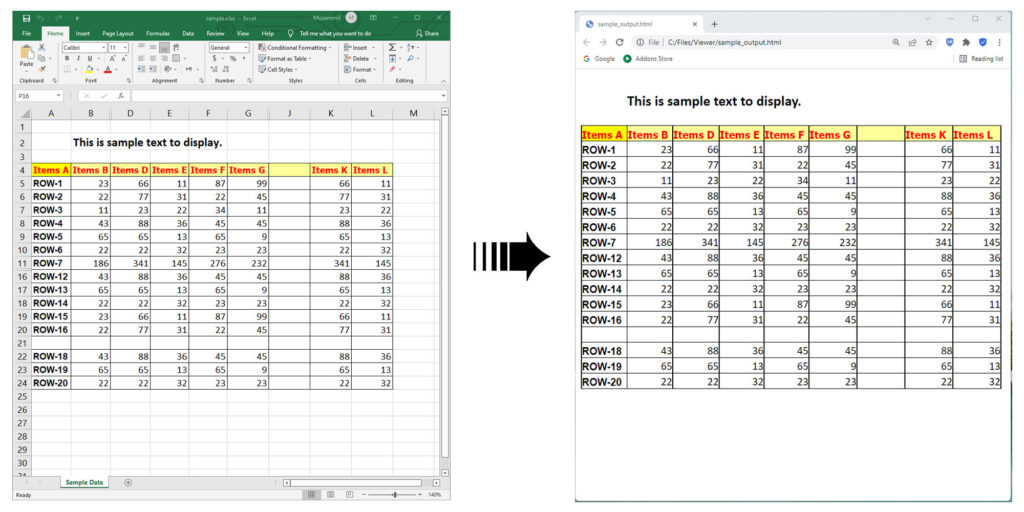
Display Excel Data in HTML using C#.
Render Excel Data in PDF using C#
Convert an Excel workbook to a PDF document with these actions:
- Load the workbook using the [Viewer][16] class.
- Create a [PdfViewOptions][24] instance.
- Set the destination PDF file path.
- Invoke the [View()][20] method, supplying the PdfViewOptions.
The example illustrates how to render an Excel file to PDF using C#.
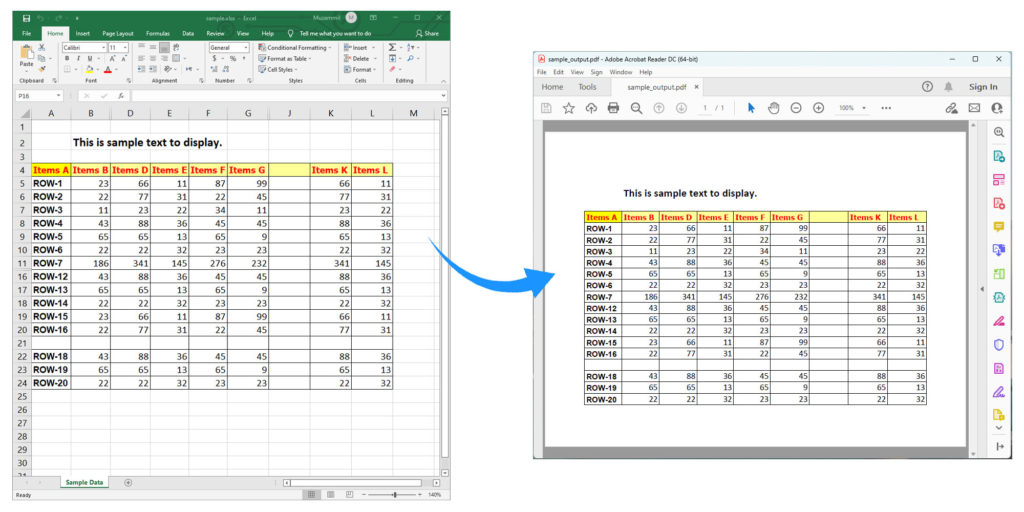
Render Excel Data in PDF using C#.
View Excel File as JPG Image using C#
Generate JPG images from an Excel worksheet by performing the following:
- Open the workbook with the [Viewer][16] class.
- Create a [JpgViewOptions][23] object.
- Specify the output folder or file name.
- Execute the [View()][20] method with the JpgViewOptions.
The code sample shows how to render an Excel file as JPG images using C#.
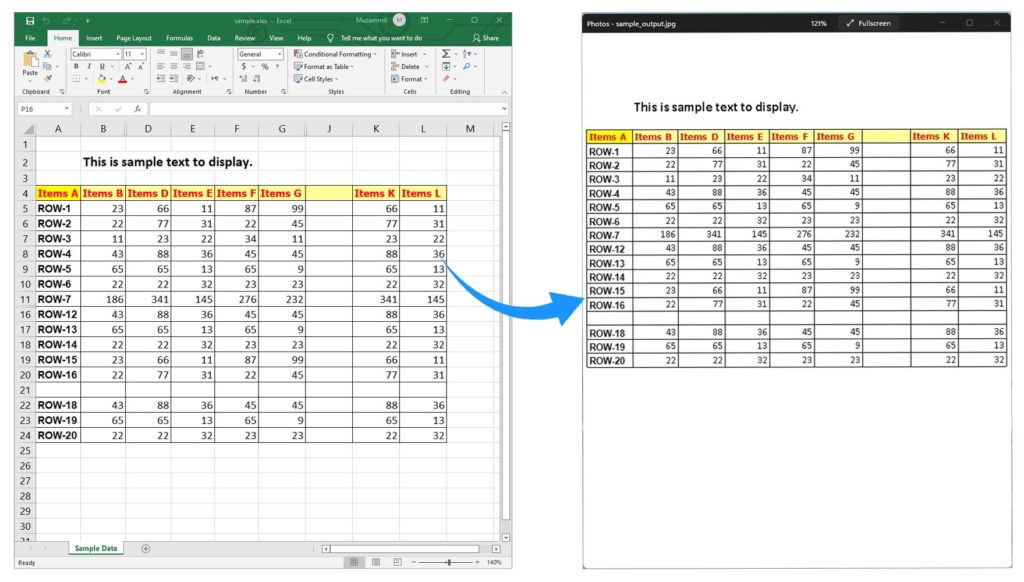
View Excel File as JPG Image using C#.
You can also generate PNG images:
Adjust Text Overflow in Cells using C#
Control how text that exceeds cell boundaries is displayed. Available modes are:
- Overlay – text overlays adjacent cells even when they contain data.
- OverlayIfNextIsEmpty – overlay occurs only if the next cell is empty.
- AutoFitColumn – automatically widens the column to fit the text.
- HideText – hides overflow text completely.
To set an overflow mode:
- Load the workbook with the [Viewer][16] class.
- Create a [PdfViewOptions][24] instance.
- Define the output PDF path.
- Assign
SpreadsheetOptions.TextOverflowMode(e.g.,HideText). - (Optional) Enable
RenderHeadingsandRenderGridLinesfor better readability. - Call the [View()][20] method with the configured PdfViewOptions.
The snippet demonstrates how to adjust text overflow while rendering an Excel file using C#.
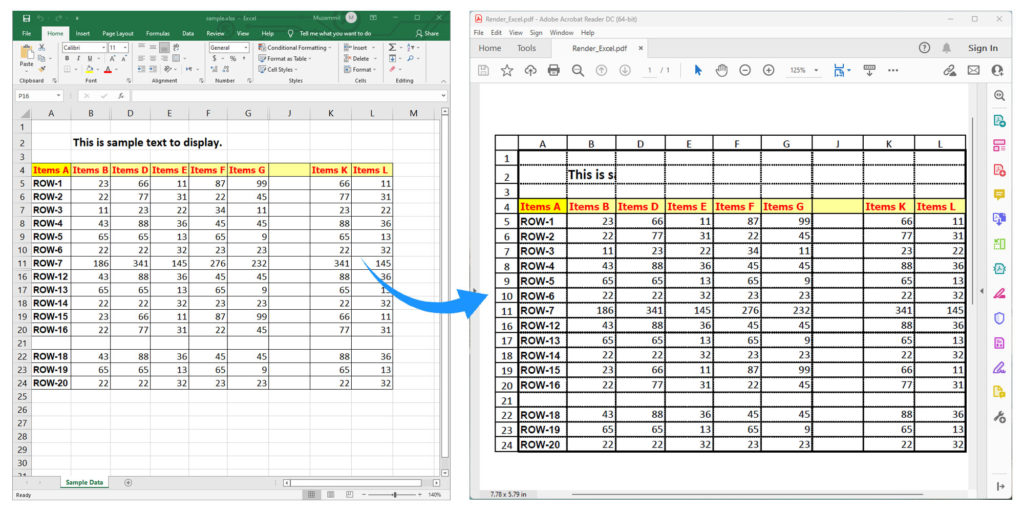
Adjust Text Overflow in Cells using C#.
Render Hidden Rows and Columns of Excel
To include rows and columns that are hidden in the original workbook, enable the following options:
viewOptions.SpreadsheetOptions.RenderHiddenColumns = true;
viewOptions.SpreadsheetOptions.RenderHiddenRows = true;
The example illustrates how to render hidden rows and columns of an Excel file to PDF using C#.
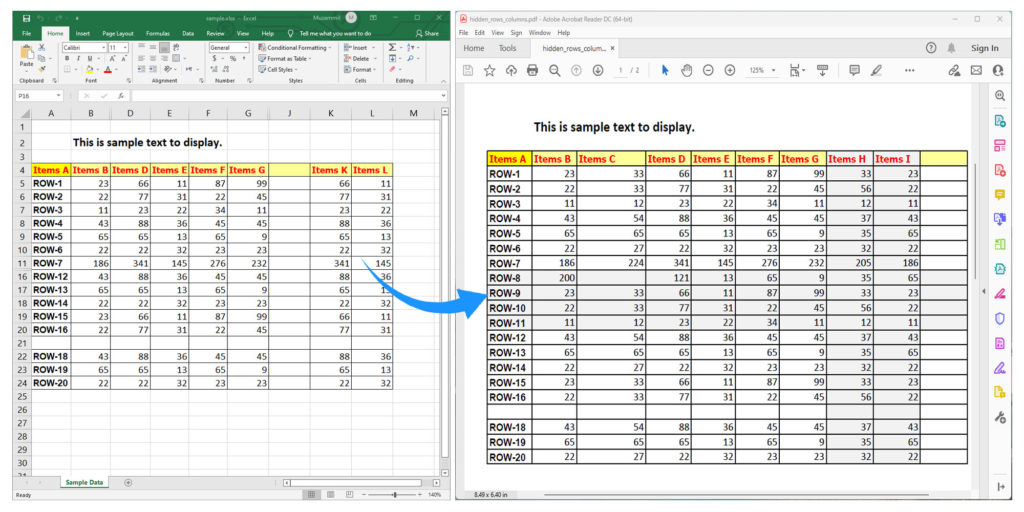
Render Hidden Rows and Columns of Excel.
Skip Empty Rows and Columns in Excel using C#
To omit blank rows and columns from the output, activate these settings:
viewOptions.SpreadsheetOptions.SkipEmptyColumns = true;
viewOptions.SpreadsheetOptions.SkipEmptyRows = true;
The code sample shows how to skip empty rows and columns when converting an Excel file with C#.
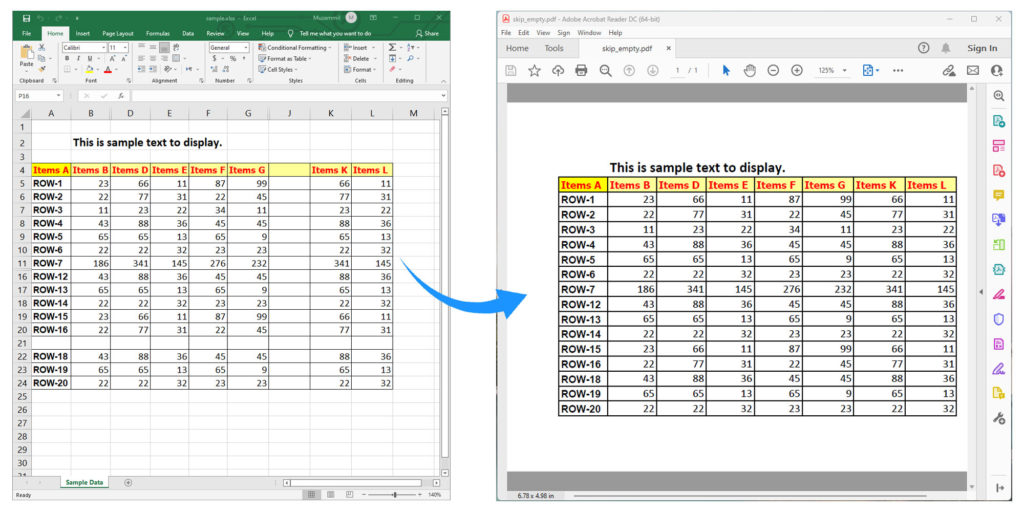
Skip Empty Rows and Columns in Excel using C#.
Split Excel Worksheet by Rows and Columns
For large worksheets, split the content into multiple pages to improve performance and navigation. Follow these steps:
- Load the workbook with the [Viewer][16] class.
- Create a [PdfViewOptions][24] object.
- Set the target PDF file path.
- Configure
SpreadsheetOptionsusingForSplitSheetIntoPages(rowCount, columnCount). - Execute the [View()][20] method with the prepared PdfViewOptions.
The snippet demonstrates how to split an Excel worksheet into separate pages by rows and columns using C#.
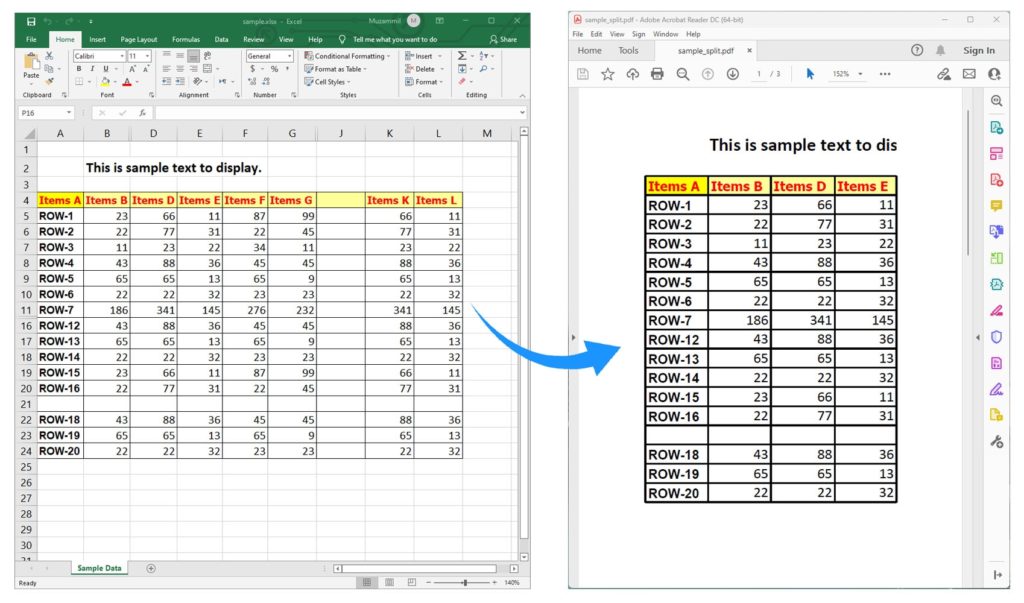
Split Excel Worksheet by Rows and Columns.
Get a Free License
Request a free temporary license to try the API without evaluation limitations: [a free temporary license][29].
Conclusion
In this article we covered how to:
- Render Excel worksheets to HTML, PDF, PNG, and JPG using C#.
- Control text overflow and display grid lines.
- Show column and row headings in the output.
- Skip empty rows/columns and include hidden rows/columns.
- Split large worksheets into multiple pages for better performance.
Explore additional capabilities of GroupDocs.Viewer for .NET in the [documentation][30]. For technical questions, visit the [forum][31].
See Also
- [Insert or Delete Rows and Columns in Excel using C#][32]