In this article, I explain how to delete blank rows and columns in an Excel file using C# and how to automatically update references used in formulas, charts, and tables.
- Delete Blank Rows in Excel using C#
- Update References Automatically while Deleting Blank Rows
- Delete Blank Columns in Excel using C#
C# API to Remove Blank Rows and Columns
Aspose.Cells for .NET is a popular spreadsheet manipulation API that lets you create and process Excel files in .NET applications. It can remove blank rows and columns with just a few lines of code. You can either download the binaries or install it via NuGet.
PM> Install-Package Aspose.Cells
Delete Blank Rows in Excel using C#
Steps to delete all blank rows in Excel using C#:
- Open an Excel file with the Workbook object.
- Access the worksheet that contains the blank rows (by index or name).
- Call the Cells.DeleteBlankRows() method to remove all rows without data.
The sample code below demonstrates how to delete blank rows in Excel using C#.

Fig 1: Delete Blank Rows
Note: Cells.DeleteBlankRows removes blank rows even when they have formatting, including formatted blank rows below your data.

Fig 2: Delete Formatted Blank Rows
To delete blank rows from every worksheet, iterate over the WorksheetCollection and call DeleteBlankRows on each worksheet, as shown here:
Update References Automatically while Deleting Blank Rows
Removing blank rows can break references in formulas, charts, and tables. For example, cell B2 on the second worksheet contains the formula =Sheet1!C3, which refers to cell C3 on the first worksheet.
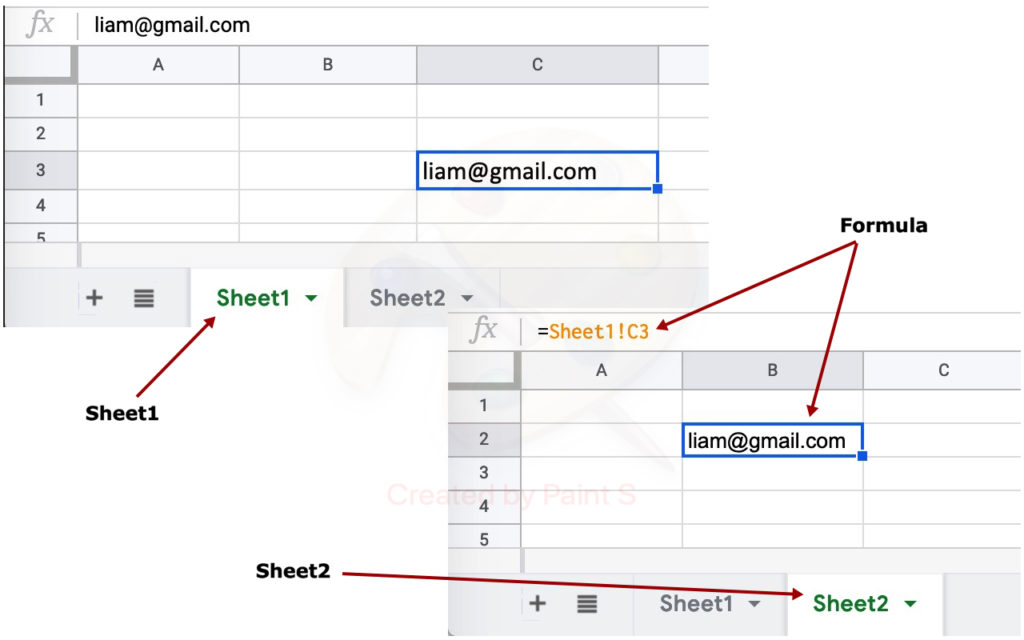
Fig 3: A cell in Sheet2 is referring to a value in Sheet1.
If blank rows are removed from Sheet1, the value lima@gmail.com moves to cell C1, but the formula (=Sheet1!C3) does not update, leaving an invalid value in B2.
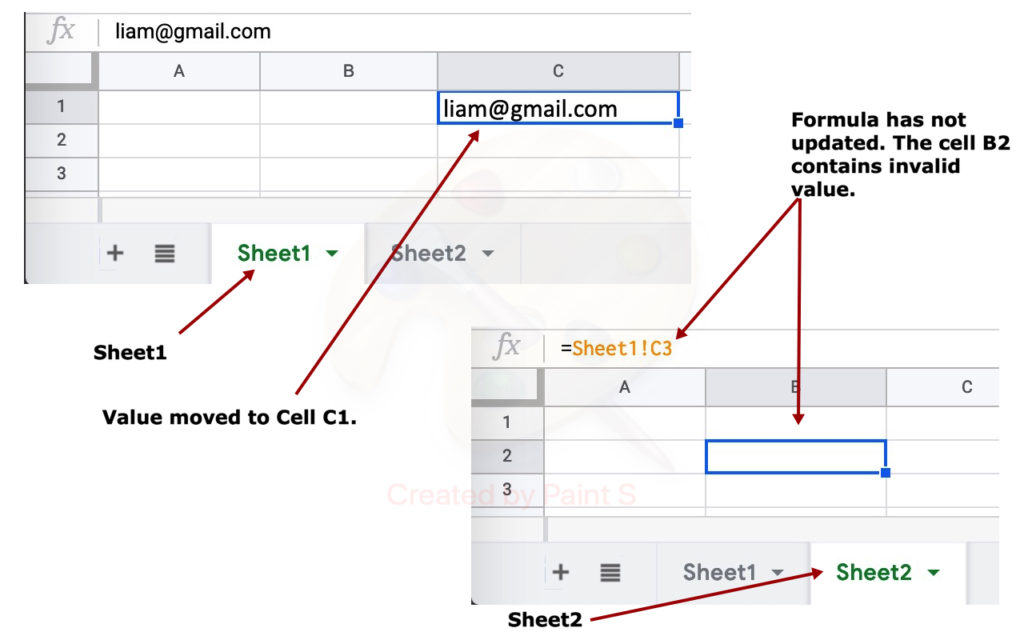
Fig 4: After removing blank rows, formula in Cell B2 has not updated.
Avoid this issue by setting DeleteOptions.UpdateReference to true. This ensures that all references are updated while deleting blank rows. The code below demonstrates the use of DeleteOptions.UpdateReference.
As shown in the image, the formula updates and cell B2 now contains a valid value.
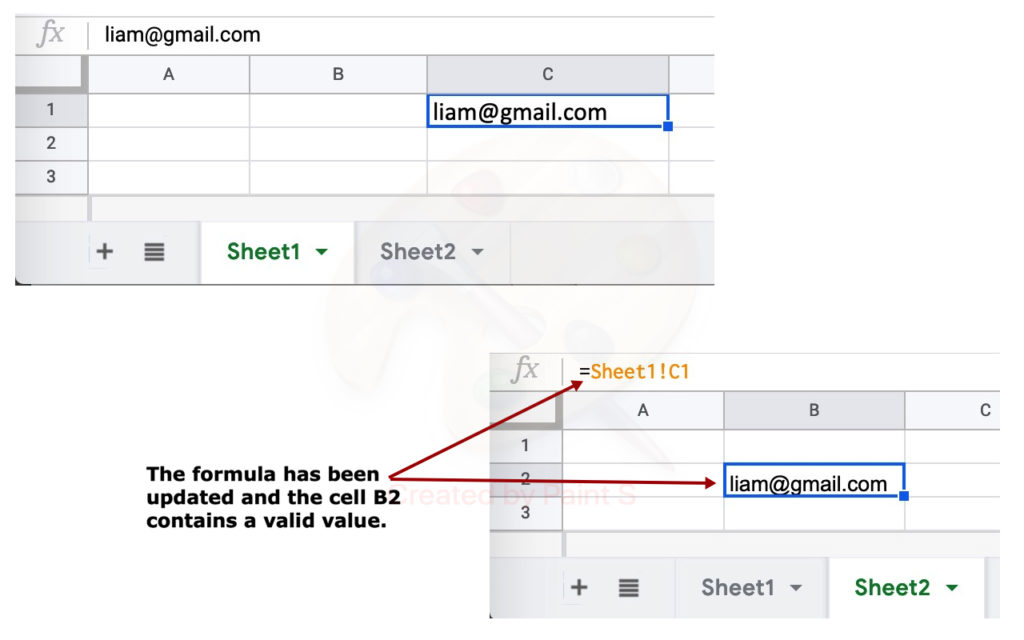
Fig 5: Formula has been updated and the cell contains a valid value.
Delete Blank Columns in Excel using C#
The steps to delete blank columns are the same as for rows. Use the Cells.DeleteBlankColumns method to remove all columns without data. The sample code below deletes both blank rows and columns.

Fig 6: Delete Blank Rows and Columns
Conclusion
You have learned how to delete blank rows and columns in an Excel file using C# and how to automatically update references in formulas, charts, and tables. For more details, see the documentation of Aspose.Cells for .NET. If you have questions, post them on our Support Forum; we’ll respond within a few hours.