Compare Two or More Word Documents using C#
You can easily compare two or more Word documents or compare multiple versions of the same Word file for the differences and similarities programmatically in your .NET applications. In this article, you will learn how to compare two or more Word documents and highlight differences using C#.
The following topics are discussed/covered in this article:
- C# API to Compare DOCX Files
- Compare Two or More Word Documents using C#
- Compare Word Documents using Stream in C#
- Get Text of the Changes using C#
- Documents Properties Comparison using C#
- Compare Password Protected Word Documents using C#
- Compare Bookmarks in Word Documents using C#
C# API to Compare DOCX Files
For comparing two or more DOCX files, I will be using GroupDocs.Comparison for .NET API. It compares two or more documents and finds out the changes in the content of the documents for words, paragraphs, and characters. As a result, it produces a comparison document that highlights the differences and lists a summary of the differences. It also enables you to detect changes and differences in text style between similar document formats. The API supports comparing all industry‑standard document formats such as PDF, HTML, Word, Excel, PowerPoint, Outlook emails, Visio diagrams, OpenDocument, AutoCAD, and images.
You can either download the DLL of the API or install it using NuGet.
Install-Package GroupDocs.Comparison
Compare Two or More Word Documents using C#
You can compare two or more Word documents programmatically by following the simple steps given below:
- Create an instance of the Comparer class with the source DOCX file path
- Call the Add() method with the target DOCX file to add to the comparison
- Repeat the above step to add more files in comparison
- Call the Compare() method with the output file path
The following code sample shows how to compare two or more Word documents and highlights the differences using C#.
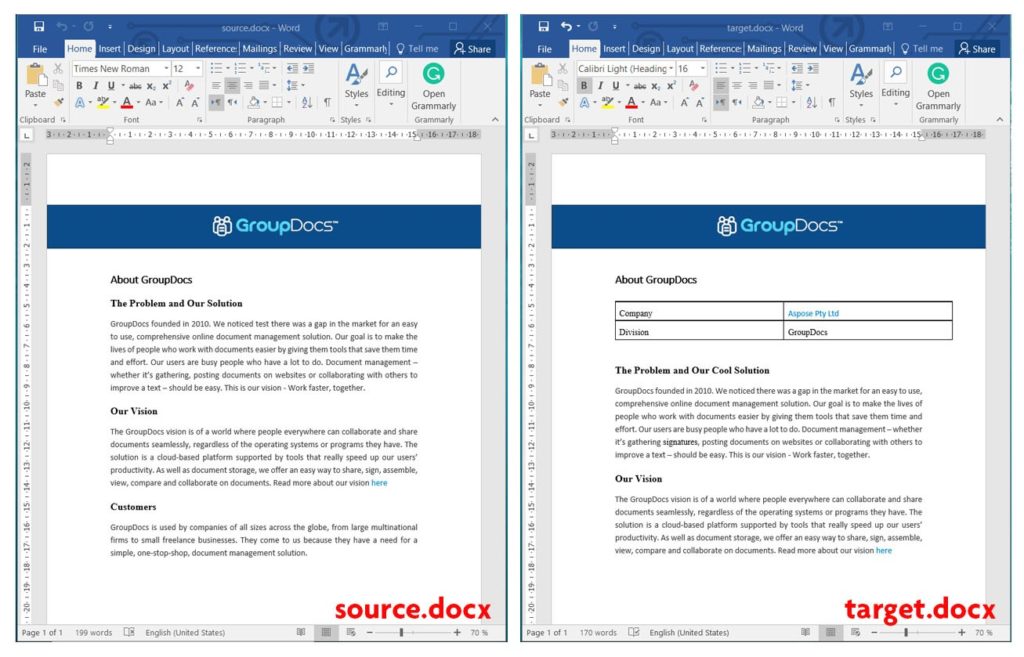
Source and Target DOCX Files
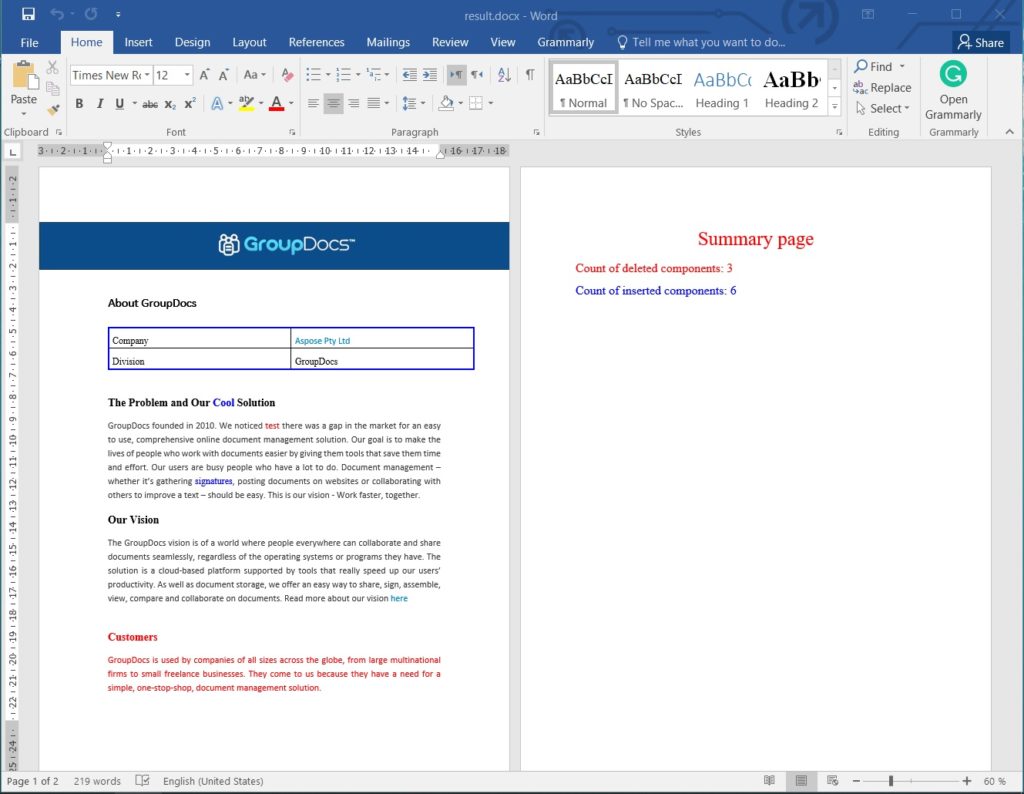
Compare Two or More Word Documents using C#
The resulting document also includes a summary page at the end that shows all detected changes.
The Comparer class is the main class that controls the comparison process. Its Add() method adds a file to the comparison. You can add multiple files as shown below:
comparer.Add("target1.docx");
comparer.Add("target2.docx");
comparer.Add("target3.docx");
The Compare() method compares the source and target documents, highlights the differences, and saves the result to the specified path.
Compare Word Documents using Stream in C#
You can compare two or more Word documents using FileStream by following these steps:
- Read the source file into a Stream object
- Read the target file into another Stream object
- Create an instance of the Comparer class with the source Stream
- Call the Add() method with the target Stream
- Call the Compare() method with the output file path
The following code sample shows how to compare Word documents using FileStream in C#.
Get Text of the Changes using C#
You can retrieve the text of changes found in a Word document comparison by following these steps:
- Create an instance of the Comparer class with the source DOCX file path
- Call the Add() method with the target DOCX file
- Add additional files if needed
- Call the Compare() method
- Call the GetChanges() method to obtain change details
- Display the changes
The following code sample shows how to get the text of the changes using C#.
Count of changes: 10
Change Type: Inserted, Text:
Change Type: Inserted, Text:  Company ‼ HYPERLINK "http://www.aspose.com/" ¶Aspose Pty Ltd§ Division GroupDocs
Change Type: Inserted, Text:
Change Type: Inserted, Text: Cool
Change Type: Deleted, Text: test
Change Type: Inserted, Text:
Change Type: Inserted, Text: signatures
Change Type: Inserted, Text:
Change Type: Deleted, Text: Customers
Change Type: Deleted, Text: GroupDocs is used by companies of all sizes across the globe, from large multinational firms to small freelance businesses. They come to us because they have a need for a simple, one-stop-shop, document management solution.
The GetChanges() method returns a list of ChangeInfo objects that contain details such as Text and Type.
Documents Properties Comparison using C#
You can compare built‑in, custom, and variable properties of Word documents by following these steps:
- Create an instance of the Comparer class with the source DOCX file path
- Call the Add() method with the target DOCX file
- Add additional files if needed
- Create an instance of CompareOptions
- Set CompareVariableProperty to true
- Set CompareDocumentProperty to true
- Call the Compare() method with the output path and the CompareOptions
The following code sample shows how to compare document properties using C#.
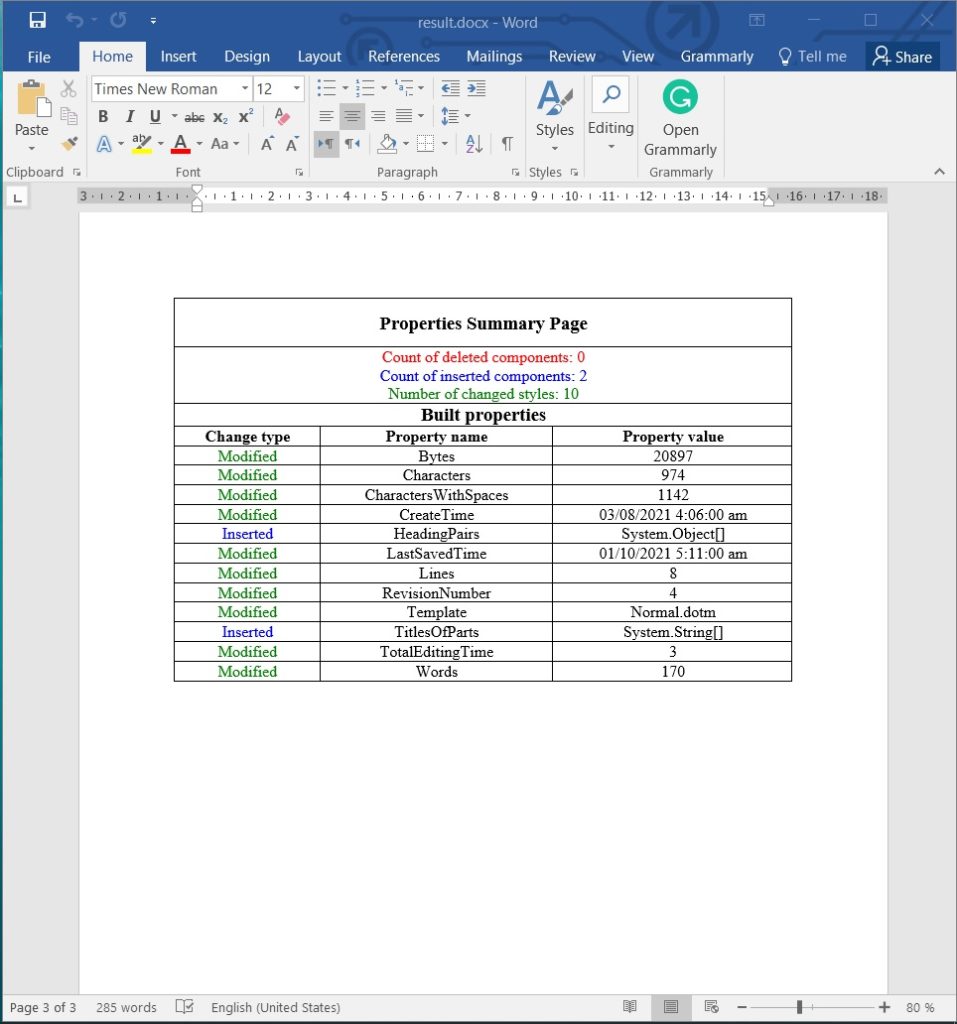
Documents Properties Comparison using C#
You can fine‑tune the comparison by using the CompareOptions class. Setting CompareDocumentProperty enables comparison of built‑in and custom properties, while CompareVariableProperty enables comparison of variable properties.
Compare Password Protected Word Documents using C#
You can compare password‑protected Word documents by following these steps:
- Create an instance of the LoadOptions class
- Provide the password for the source file
- Create an instance of the Comparer class with the source DOCX path and LoadOptions
- Call the Add() method with the target DOCX path and a LoadOptions instance containing the password
- Add more files if needed
- Call the Compare() method with the output file path
The following code sample shows how to compare password‑protected Word documents using C#.
The LoadOptions class lets you specify additional loading options, such as:
- FontDirectories — List of font directories to load.
- LoadText — Indicates that the strings passed are comparison text, not file paths (for Text Comparison only).
- Password — Password of the document.
Compare Bookmarks in Word Documents using C#
You can compare bookmarks in Word documents by following these steps:
- Create an instance of the Comparer class with the source DOCX file path
- Call the Add() method with the target DOCX file
- Add additional files if needed
- Create an instance of the CompareOptions
- Set CompareBookmarks to true
- Call the Compare() method with the output path and CompareOptions
The following code sample shows how to compare bookmarks in Word documents using C#.
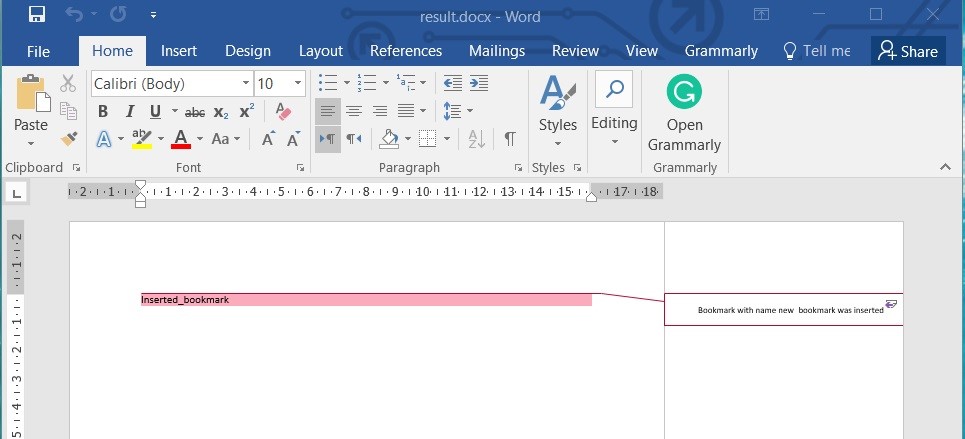
Compare Bookmarks in Word Documents using C#
The CompareBookmarks property enables comparison of bookmarks between the source and target documents.
Get a Free License
You can try the API without evaluation limitations by requesting a free temporary license.
Conclusion
In this article, you learned how to compare two or more Word documents and highlight differences using C#. You also saw how to retrieve the list of highlighted changes, compare document properties, handle password‑protected files, and compare bookmarks programmatically. Explore more about GroupDocs.Comparison for .NET API in the documentation. For questions, visit the forum.