Often developers need to compare two or more PDF documents within a .NET application. Using GroupDocs.Comparison for .NET, you can programmatically detect and highlight changes across PDF files. This guide shows how to compare multiple PDF files and highlight differences in C#.
The following topics are covered:
- C# API to Compare PDF Documents
- Compare Two PDF Files using C#
- Compare Multiple PDF Documents using C#
- Compare Password Protected PDF Files using C#
C# API to Compare PDF Documents
To compare two PDF files for differences, we’ll use the GroupDocs.Comparison for .NET API. This library identifies changes in words, paragraphs, and characters, then creates a comparison document that includes a detailed summary of differences. It supports a wide range of formats—PDF, HTML, Outlook email, Word, Excel, PowerPoint, OneNote, Visio, text, and images—making it ideal for any .NET development environment.
You can obtain the library by either downloading the DLL or installing it via NuGet:
Install-Package GroupDocs.Comparison
Compare Two PDF Files using C#
Follow these steps to compare two PDF documents:
- Create an instance of the Comparer class.
- Pass the source PDF file path to the constructor.
- Use the Add method to include the target PDF file.
- Invoke the Compare method, specifying the output file path.
The sample below demonstrates how to compare two PDF documents and highlight the differences using C#.
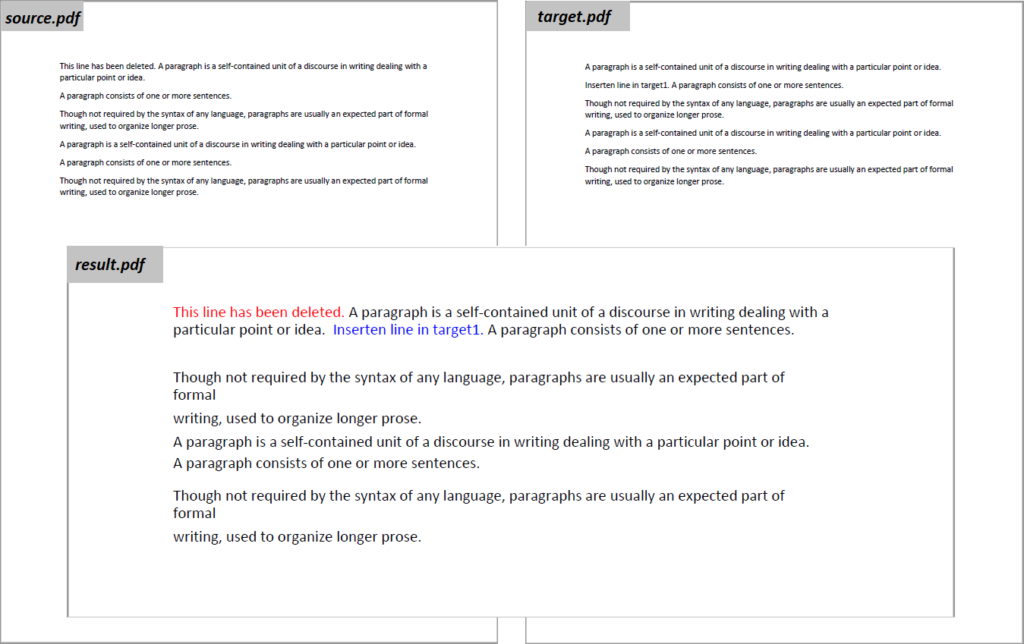
Compare Two PDF Files using C#
The generated PDF includes a summary page at the end, clearly showing all detected changes:
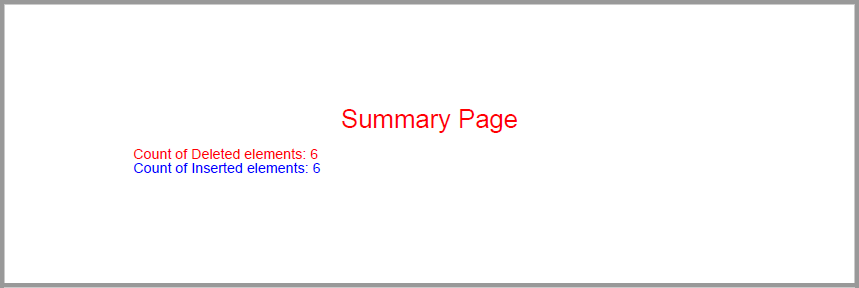
C# PDF Comparison Changes
Compare Multiple PDF Documents using C#
Building on the two‑file example, you can compare any number of PDF files by adding each target document to the comparer. This approach is useful for batch processing or version control scenarios.
Comparer comparer = new Comparer("source.pdf");

// Add additional PDFs to the comparison
comparer.Add("target2.pdf");
comparer.Add("target3.pdf");

// Generate the highlighted comparison result
comparer.Compare("result.pdf");
Each added file is evaluated against the source, and the output PDF contains a consolidated view of all differences across the documents.
Compare Password Protected PDF Files using C#
GroupDocs.Comparison also handles password‑protected PDFs. Use LoadOptions to supply the required passwords for both source and target files.
- Instantiate the Comparer class with the source file path.
- Provide the source password via
LoadOptions. - Add the target PDF using
Add, also passing its password throughLoadOptions. - Call the Compare method to produce the highlighted result.
The code example below illustrates how to compare password‑protected PDF documents in C#.
Get a Free License
You can compare PDF documents in C# without evaluation limitations by requesting a free temporary license.
Conclusion
In this article, you have learned how to compare two or more PDF documents and highlight differences using C#. The solution supports single, multiple, and password‑protected PDFs, and it generates a comprehensive comparison report that helps you decide whether to accept or reject changes. For deeper technical details, refer to the GroupDocs.Comparison .NET API documentation on the documentation page. If you have questions, feel free to contact us on the forum.