In the first blog post we introduced a basic Google Docs‑style web application that supports:
- Rich‑text editing (font, size, colour, bold, italic, alignment, etc.).
- Real‑time collaborative editing so multiple users can edit the same document simultaneously.
- Uploading an existing Word document directly into the editor.
This second part expands the solution with two essential capabilities:
- Export the edited content to Microsoft Word, PDF, TXT, or HTML formats.
- Generate a shareable URL that lets friends open the same editor instance and collaborate in real time.
The completed interface looks like this:
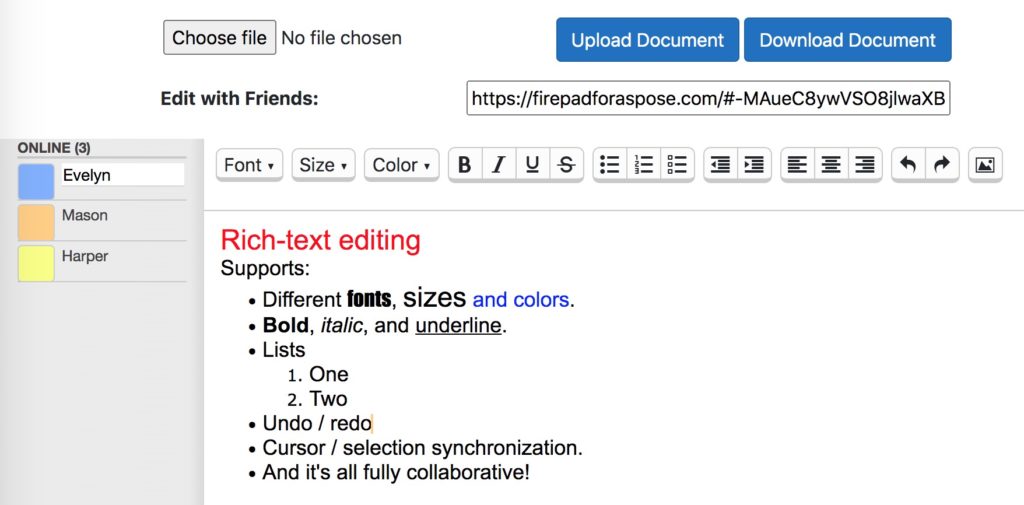
- Download Content of the Editor As
- Share URL of an Editor with friends
Download Content of the Editor as Microsoft Word Document
Add a <input> of type submit to the form to display a “Download Document” button. Use the asp-page-handler attribute to bind the button to its handler. The updated form:
<form method="post" enctype="multipart/form-data" id="uploadForm">
    <input asp-for="UploadedDocument" />

    <input type="submit" value="Upload Document" class="btn btn-primary" asp-page-handler="UploadDocument" />
    <input type="submit" value="Download Document" class="btn btn-primary" asp-page-handler="DownloadDocument" />

    <input asp-for="DocumentContent" type="hidden" />
</form>
A hidden <input> bound to DocumentContent stores the editor’s HTML markup.
[BindProperty]
public string DocumentContent { get; set; }
Firepad triggers a synced event when changes are persisted to Firebase. Capture this event to update DocumentContent with the latest HTML.
firepad.on('synced', function (isSynced) {
    // isSynced is false immediately after an edit and true once the edit is saved.
    if (isSynced) {
        document.getElementById("DocumentContent").value = firepad.getHtml();
    }
});
Implement the OnPostDownloadDocument() handler. The GroupDocs.Editor library converts the stored HTML into a Word file and streams it back to the browser.
public FileResult OnPostDownloadDocument()
{
    // Load the originally uploaded document for editing.
    WordProcessingLoadOptions loadOptions = new WordProcessingLoadOptions();
    Editor editor = new Editor(UploadedDocumentPath, delegate { return loadOptions; });

    // The HTML stored in DocumentContent lacks <html>, <head> and <body> tags, so we add them.
    string completeHTML = "<!DOCTYPE html><html><head><title></title></head><body>" + DocumentContent + "</body></html>";
    EditableDocument document = EditableDocument.FromMarkup(completeHTML, null);

    // Define the output folder and file name.
    var projectRootPath = Path.Combine(_hostingEnvironment.ContentRootPath, "DownloadedDocuments");
    var outputPath = Path.Combine(projectRootPath, Path.GetFileName(UploadedDocumentPath));

    // Save the document as DOCX.
    WordProcessingSaveOptions saveOptions = new WordProcessingSaveOptions(WordProcessingFormats.Docx);
    editor.Save(document, outputPath, saveOptions);

    // Return the generated file.
    var bytes = System.IO.File.ReadAllBytes(outputPath);
    return new FileContentResult(bytes, new MediaTypeHeaderValue("application/vnd.openxmlformats-officedocument.wordprocessingml.document"))
    {
        FileDownloadName = Path.GetFileName(UploadedDocumentPath)
    };
}
UploadedDocumentPath is a volatile string that preserves the path of the uploaded file across requests.
static volatile string UploadedDocumentPath;

public void OnPostUploadDocument()
{
    var projectRootPath = Path.Combine(_hostingEnvironment.ContentRootPath, "UploadedDocuments");
    var filePath = Path.Combine(projectRootPath, UploadedDocument.FileName);
    UploadedDocument.CopyTo(new FileStream(filePath, FileMode.Create));

    // Keep the file path for later use.
    UploadedDocumentPath = filePath;

    ShowDocumentContentInTextEditor();
}
For deeper details on saving documents and creating an EditableDocument, see the Save Document and Create EditableDocument from file or markup references.
Run the project and follow these steps:
- Click Upload Document to load an existing Word file.
- Edit the content in the real‑time editor.
- Press Download Document to download the updated Word file.
Download Content of the Editor as PDF Document
Modify the OnPostDownloadDocument() handler to output a PDF file. Use PdfSaveOptions and set the MIME type to application/pdf.
public FileResult OnPostDownloadDocument()
{
    WordProcessingLoadOptions loadOptions = new WordProcessingLoadOptions();
    Editor editor = new Editor(UploadedDocumentPath, delegate { return loadOptions; });

    string completeHTML = "<!DOCTYPE html><html><head><title></title></head><body>" + DocumentContent + "</body></html>";
    EditableDocument document = EditableDocument.FromMarkup(completeHTML, null);

    var projectRootPath = Path.Combine(_hostingEnvironment.ContentRootPath, "DownloadedDocuments");
    var outputPath = Path.Combine(projectRootPath, Path.GetFileNameWithoutExtension(UploadedDocumentPath) + ".pdf");

    PdfSaveOptions saveOptions = new PdfSaveOptions();
    editor.Save(document, outputPath, saveOptions);

    var bytes = System.IO.File.ReadAllBytes(outputPath);
    return new FileContentResult(bytes, new MediaTypeHeaderValue("application/pdf"))
    {
        FileDownloadName = Path.GetFileNameWithoutExtension(UploadedDocumentPath) + ".pdf"
    };
}
Download Content of the Editor as Plain Text Document
To export plain text, employ the TextSaveOptions class and return the file with a text/plain MIME type.
public FileResult OnPostDownloadDocument()
{
    WordProcessingLoadOptions loadOptions = new WordProcessingLoadOptions();
    Editor editor = new Editor(UploadedDocumentPath, delegate { return loadOptions; });

    string completeHTML = "<!DOCTYPE html><html><head><title></title></head><body>" + DocumentContent + "</body></html>";
    EditableDocument document = EditableDocument.FromMarkup(completeHTML, null);

    var projectRootPath = Path.Combine(_hostingEnvironment.ContentRootPath, "DownloadedDocuments");
    var outputPath = Path.Combine(projectRootPath, Path.GetFileNameWithoutExtension(UploadedDocumentPath) + ".txt");

    TextSaveOptions saveOptions = new TextSaveOptions();
    editor.Save(document, outputPath, saveOptions);

    var bytes = System.IO.File.ReadAllBytes(outputPath);
    return new FileContentResult(bytes, new MediaTypeHeaderValue("text/plain"))
    {
        FileDownloadName = Path.GetFileNameWithoutExtension(UploadedDocumentPath) + ".txt"
    };
}
Share URL of an Editor with friends
Add a text input to Index.cshtml so users can copy a direct link to the editor.
<div>
    <strong>
        <label for="shareURL">Edit with Friends: </label>
    </strong>
    <input type="text" name="shareURL" id="shareURL" size="50">
</div>
Place this <div> before the <div id="userlist"> element. Populate the field in the init() JavaScript function.
document.getElementById("shareURL").value = window.location.origin + window.location.pathname + window.location.hash;
Update the CSS so the input aligns with the editor layout. Adjust the top position of firepad and userlist to 100px, and add a left margin for the URL field.
#userlist {
    position: absolute;
    left: 0;
    top: 100px;
    bottom: 0;
    height: auto;
    width: 175px;
}

#firepad {
    position: absolute;
    left: 175px;
    top: 100px;
    bottom: 0;
    right: 0;
    height: auto;
}

#uploadForm {
    margin: 16px 2px;
}

#shareURL {
    margin-left: 123px;
}
Run the application. The new text box displays a shareable link that you can copy and send to collaborators. When they open the link, they join the same editing session instantly.
The full source code is hosted on GitHub.